In depth
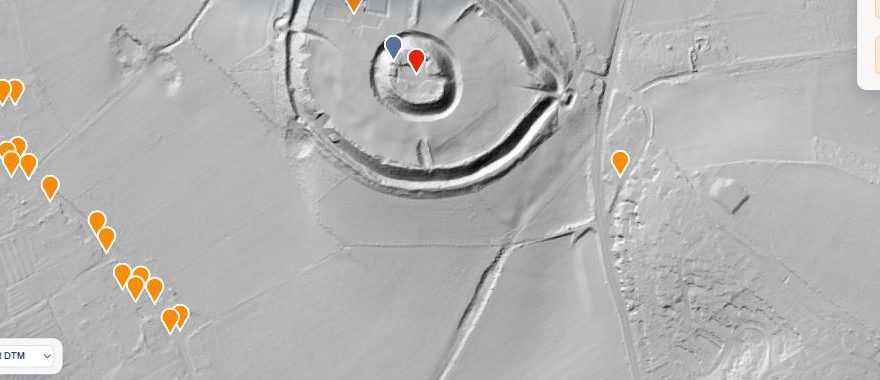
LiDAR maps
See the shape of the ground itself. Earthworks, hillforts and lost features in England's 1 metre laser survey.
Read the guide →
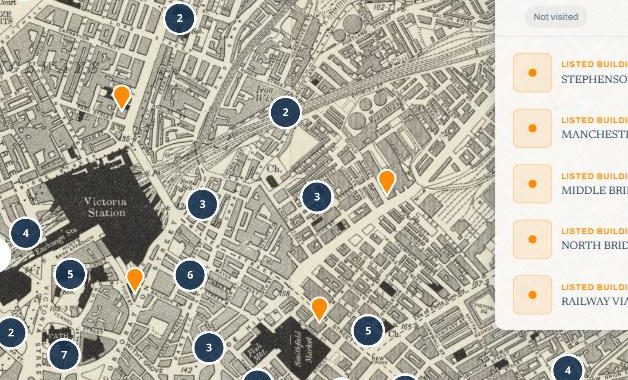
Historic map overlays
Six Ordnance Survey editions from 1885 to 1955, with swipe and side-by-side compare against today.
Read the guide →
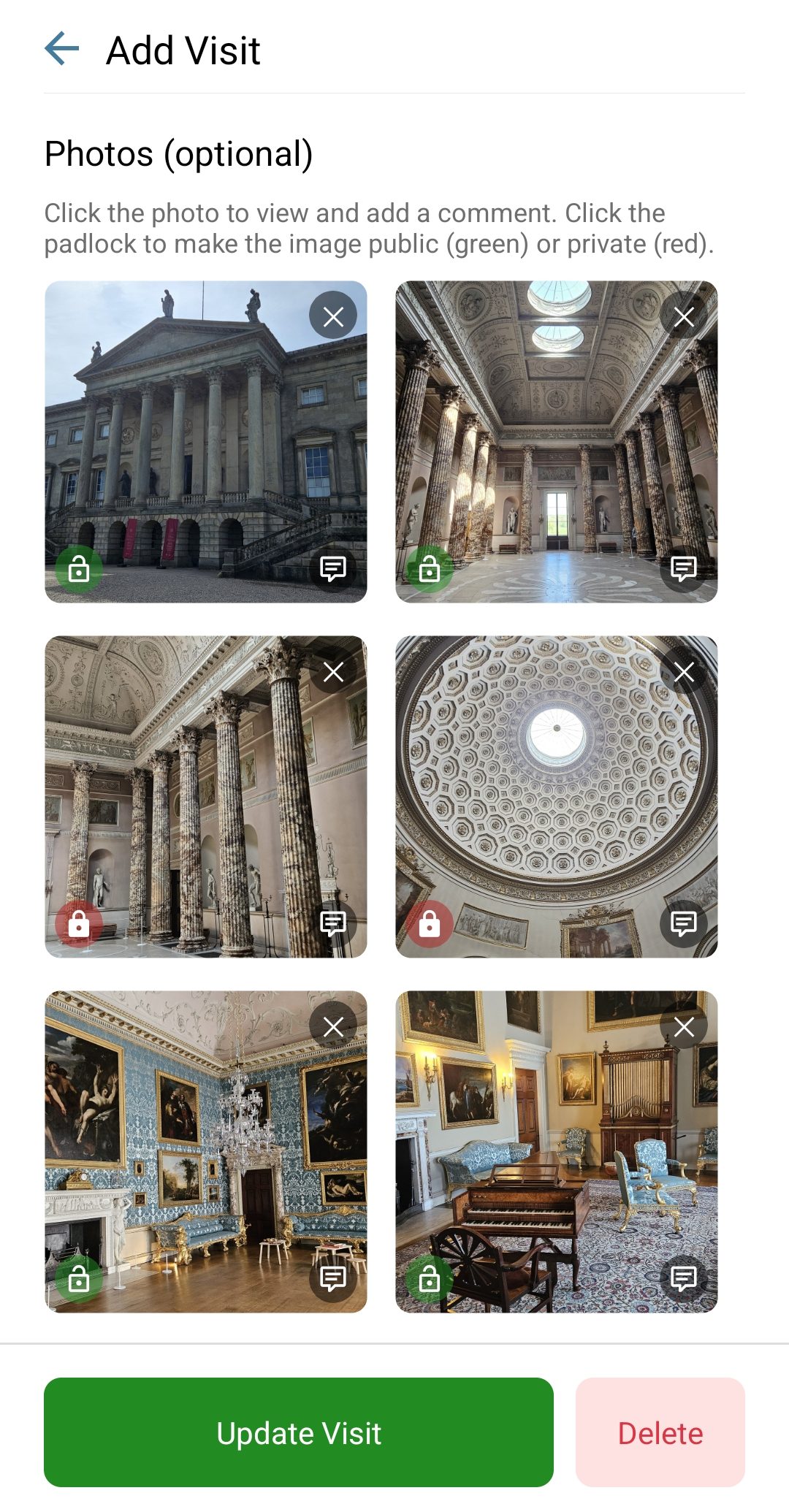
Recording visits
Dates, comments, private notes, ratings and photos with per-photo privacy, plus the wishlist.
Read the guide →
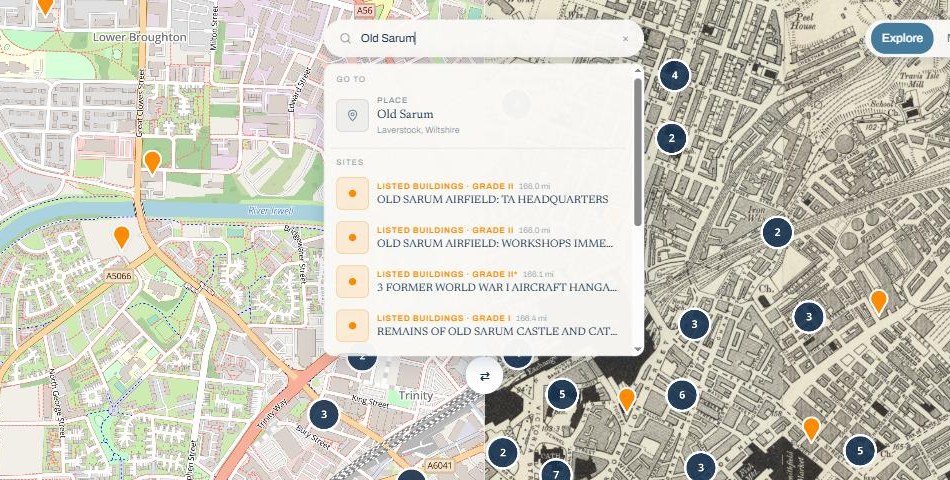
Searching
Find sites by name, search around any place, and ask the AI Discovery Assistant.
Read the guide →
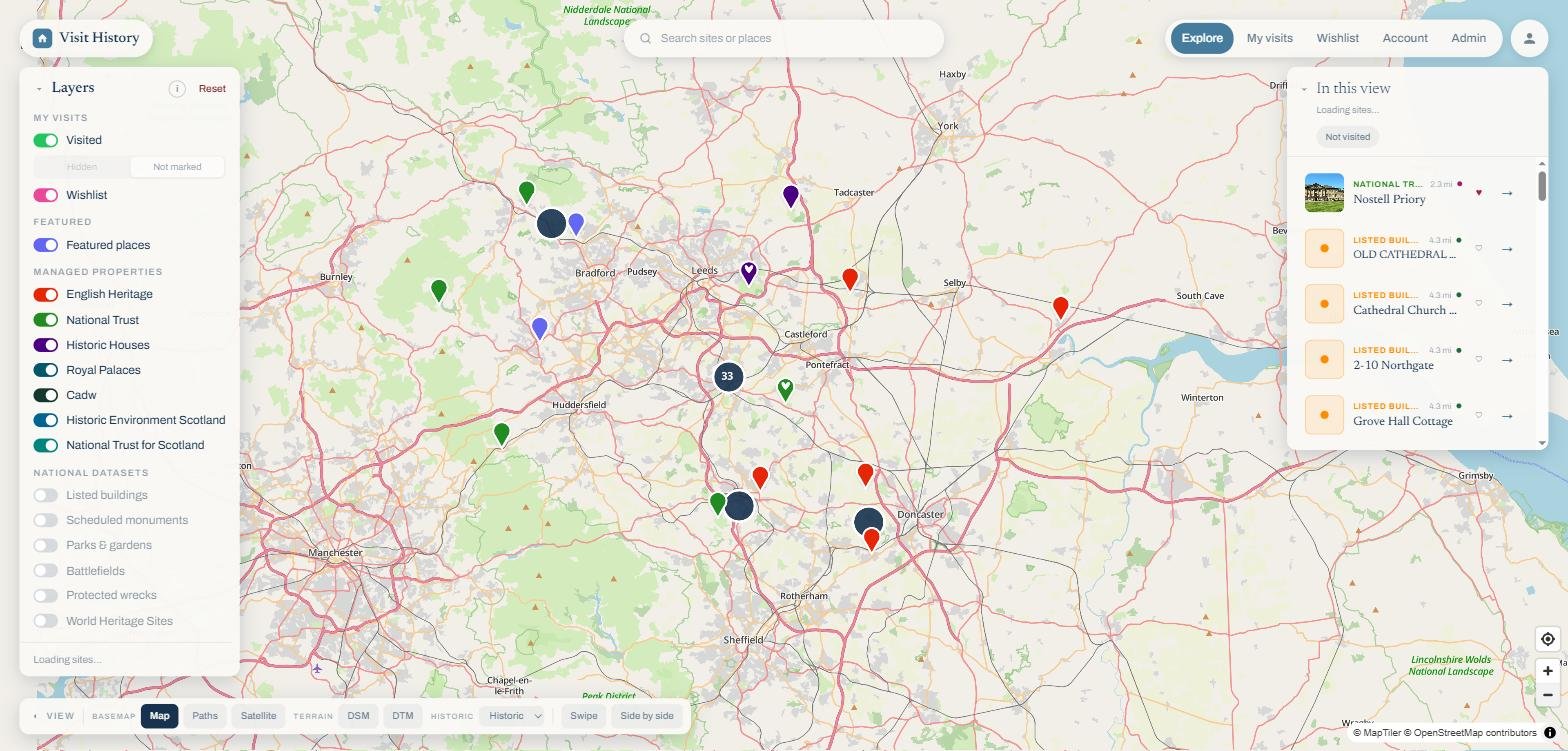
Map layers
Sixteen layers in four groups, from your own visits to the national registers.
Read the guide →
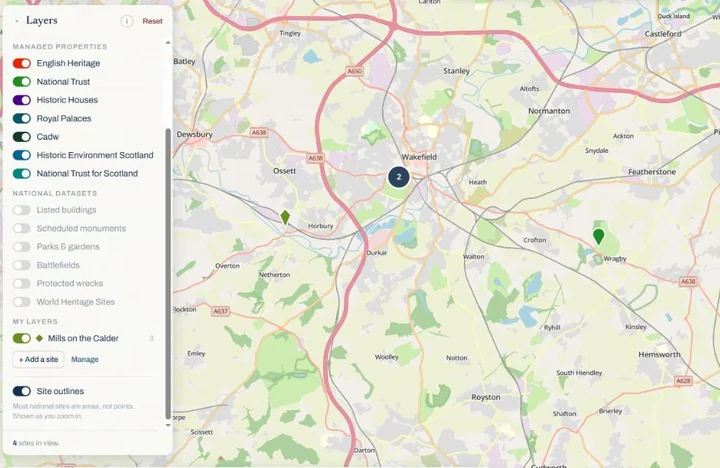
My sites
Put the places the registers miss on the map yourself, on your own layers, and choose who can see exactly where.
Read the guide →
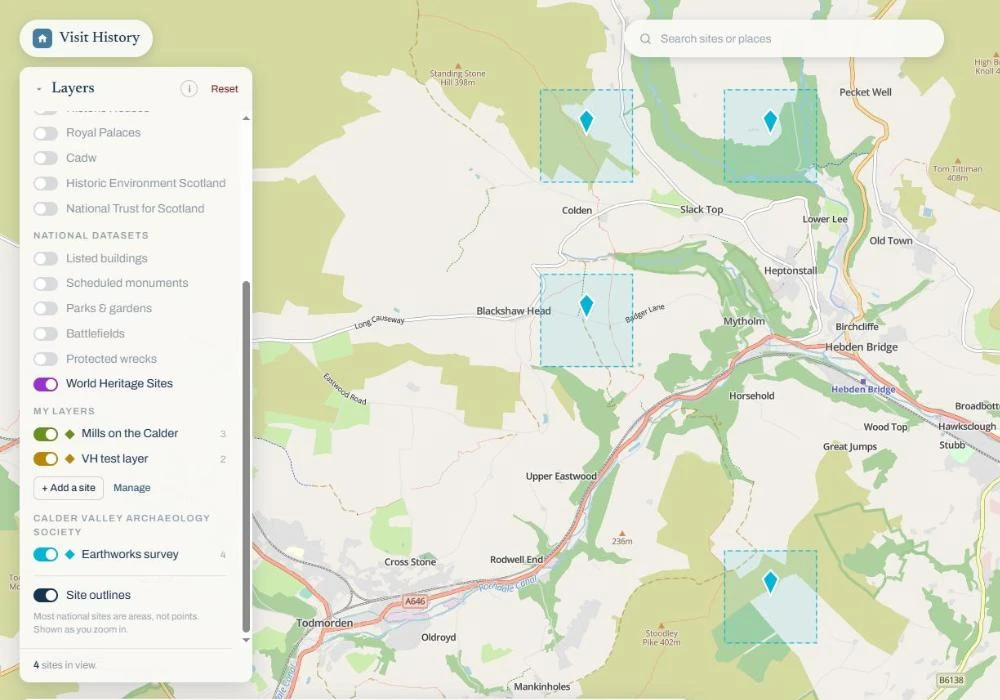
Groups
How a society or club shares its sites with its members: joining, roles, invite codes, and what the group can see.
Read the guide →
Using the map
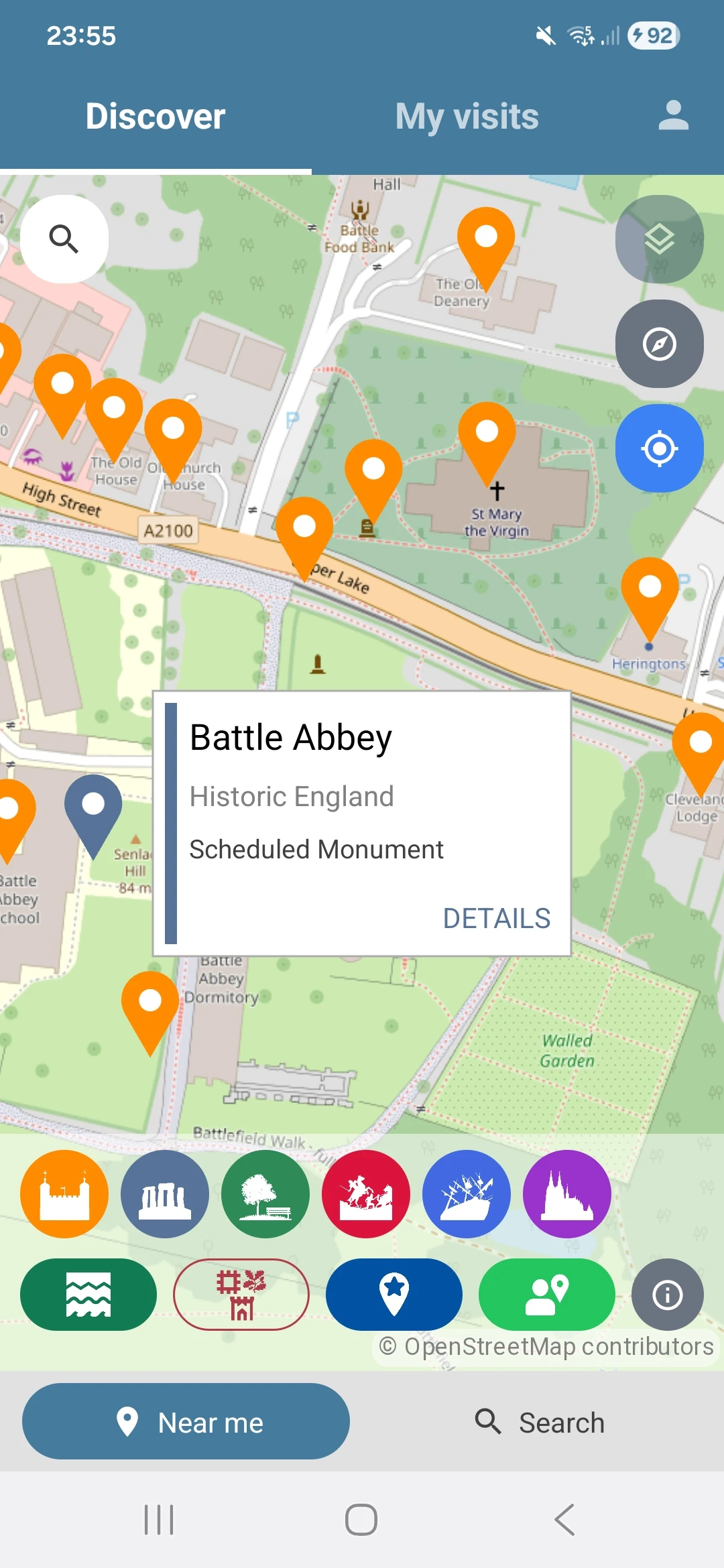
The map is the main way to explore historic sites in Visit History. When you open the app, you will see a map centred on your current location with nearby sites marked as pins.
You can pan the map by dragging with one finger and zoom in and out by pinching with two fingers or using the zoom buttons.
Tap any pin on the map to see a brief summary of that site. From the summary popup you can tap through to the full site details page, record a visit, or add it to your wishlist.
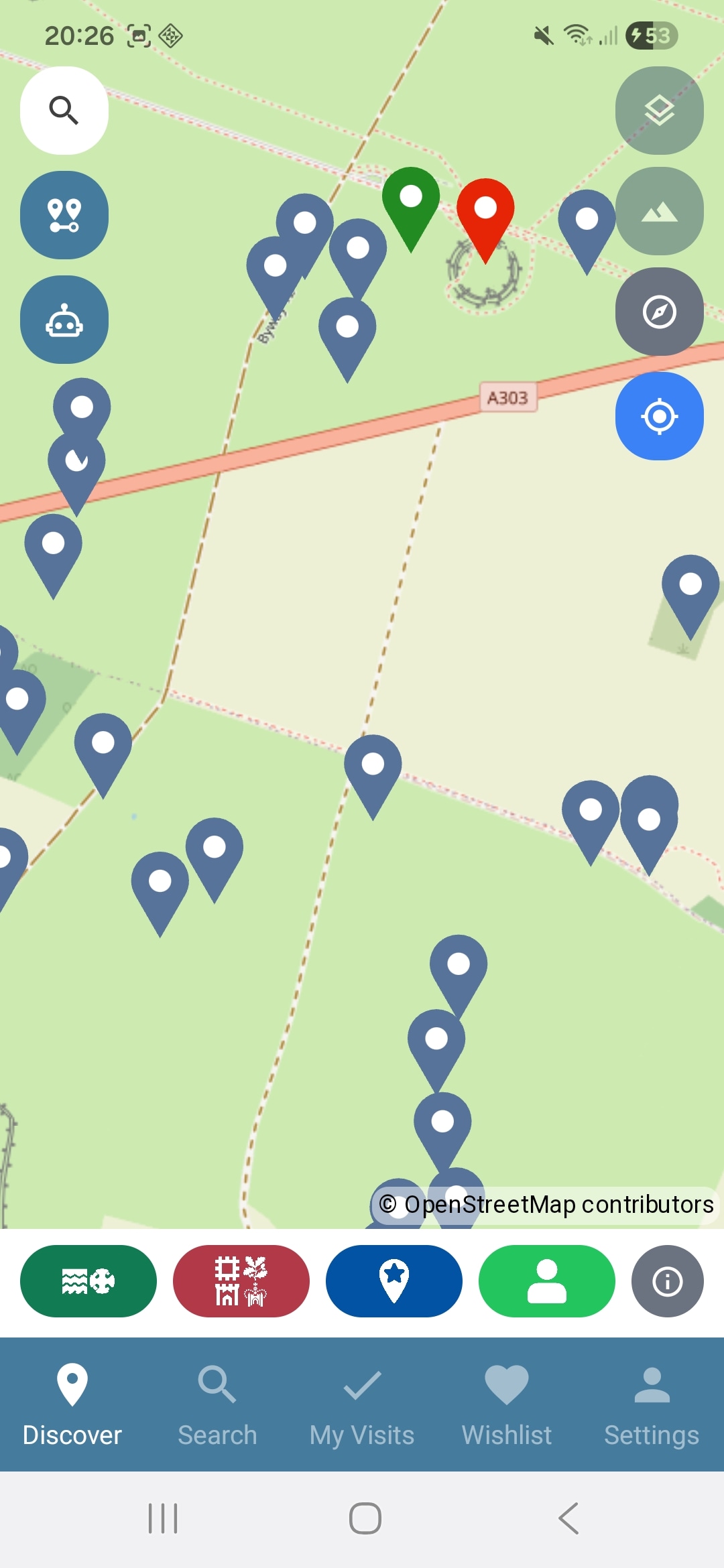
Map overlays
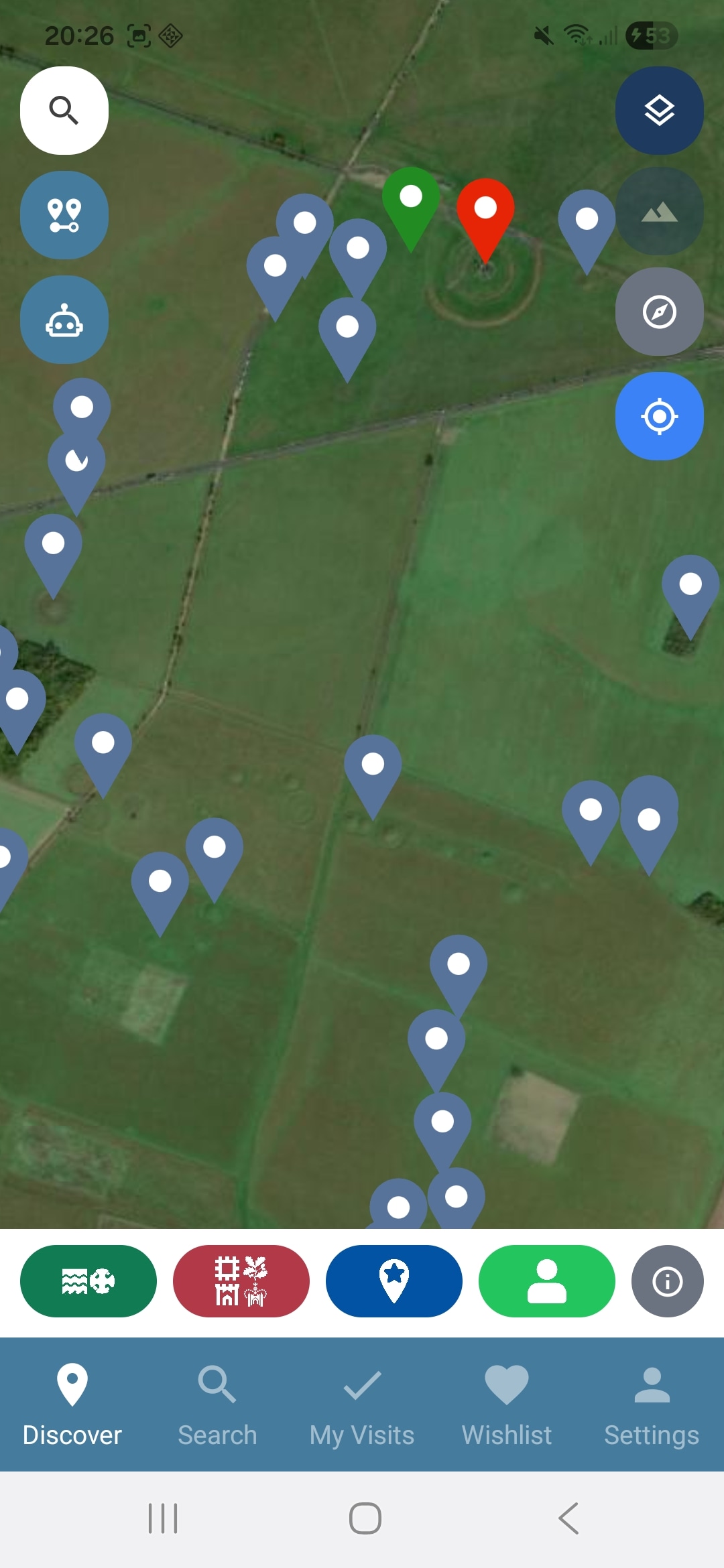
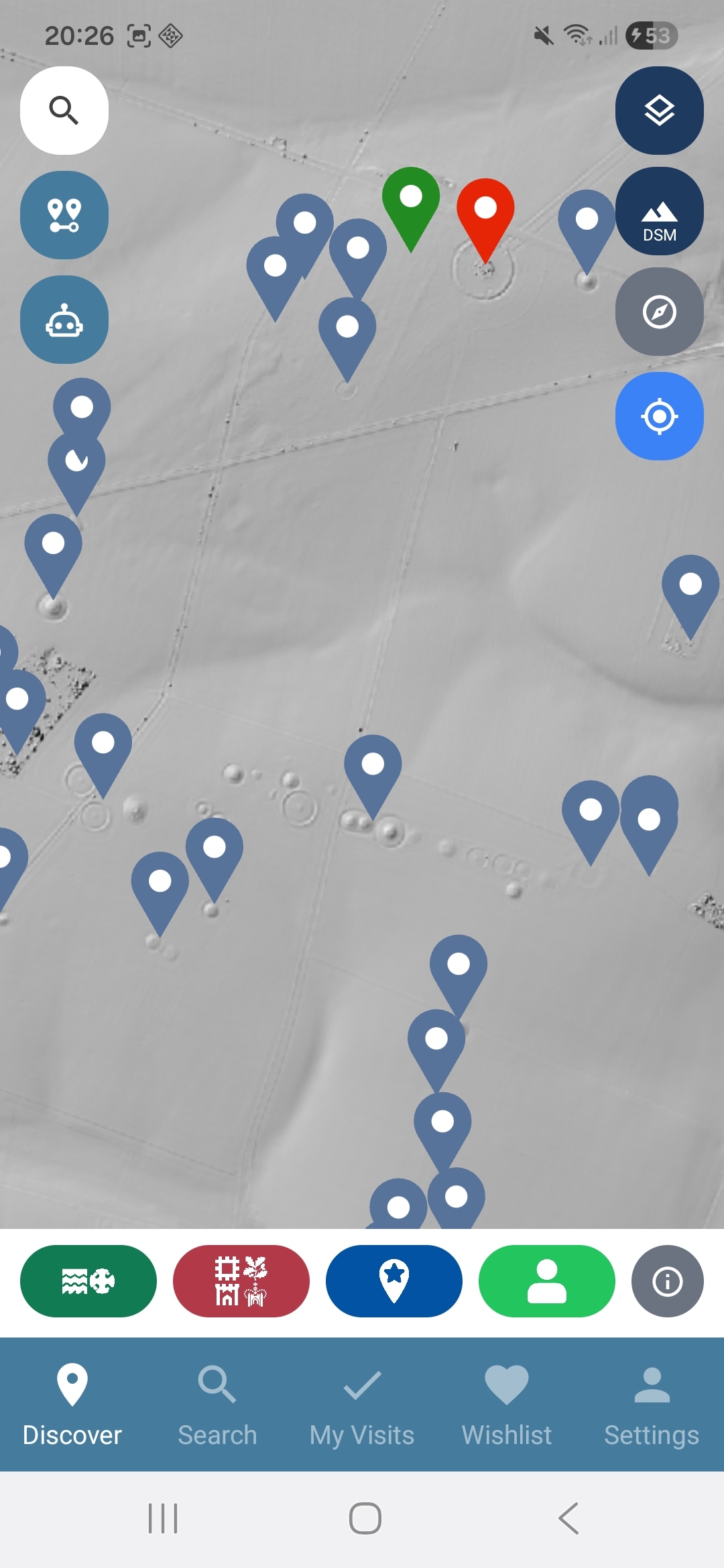
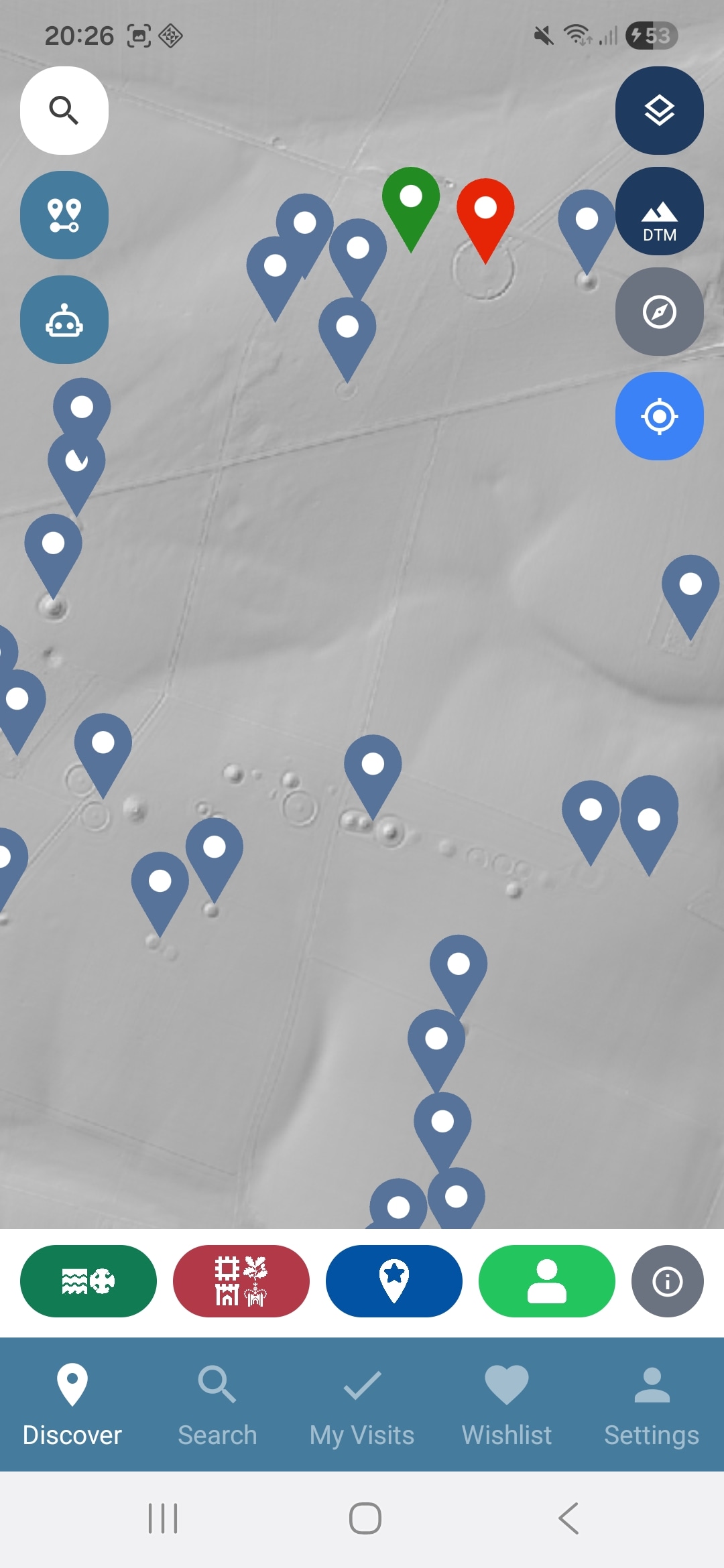
Visit History offers four map overlays to help you explore historic sites in context:
- OpenStreetMap — The default detailed, community-built map.
 Satellite — Aerial imagery from Esri World Imagery.
LiDAR — Tap to cycle through Off → DSM → DTM.
- DSM (Digital Surface Model) — shows everything on the ground including trees and buildings.
- DTM (Digital Terrain Model) — strips away surface objects, ideal for spotting archaeological features.
To switch overlays, tap the layers icon in the top-right corner of the map.
 Re-orient to north — If you have rotated the map, tap the compass icon to reset the map orientation back to north.
 Re-centre the map — Tap to re-centre the map on your current location.
Search & Discovery
Find sites by name, search around any place on the map, and ask the AI Discovery Assistant in plain words. The searching guide covers all three.
Map layers
Sixteen layers in four groups, each with its own switch and colour: your visits and wishlist, featured places, seven heritage organisations from English Heritage to the National Trust for Scotland, and the national registers of listed buildings, monuments, parks, battlefields, wrecks and World Heritage Sites.
The map layers guide walks through every layer, what it contains and how the switches behave.
Viewing a site
Tap any pin on the map to open a popup showing a summary of the site, including its name, type, and managing organisation.
From the popup, tap the site name to open the full details page where you can read more about its history, see photos from other users, and leave your own comments.