5 October 2026
Publish Your Visits: Turn a Day Out into a Page on the Website
Every visit you record in Visit History is private. Your notes are yours, your rating is yours, and your photographs stay in your account unless you tick the box that shares them with other members. That has not changed.
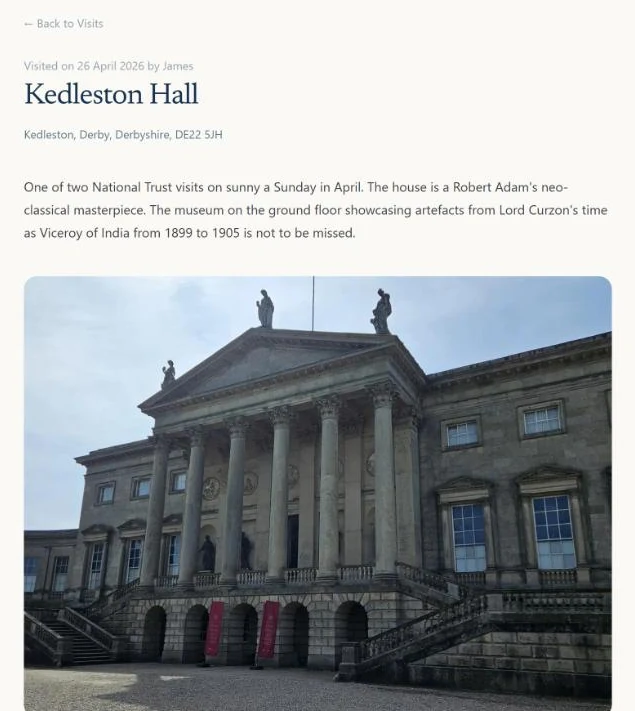
What is new is a way to take one visit and make it public on purpose: a page on this website, with its own address, that anyone can read and search engines can find. A day at Kedleston Hall becomes a page about Kedleston Hall, written by the person who was there.
We think of them as visit pages rather than blog posts, because that is what they are: one visit, one site, one date. But if you want to write five hundred words about the cold on the top of Carn Brea, the page will hold it.
What goes on the page
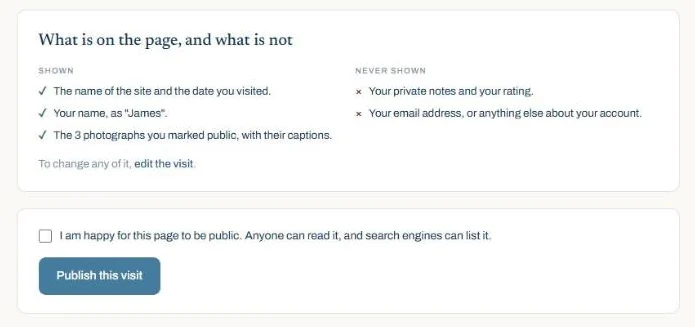
A published visit shows:
- the name of the site, and its address or listing grade
- the date you visited
- your public comment
- the photographs you marked as public, with their captions
- the name you choose to be shown as, or nothing
And it never shows:
- your private notes
- your rating
- any photograph you did not mark as public
- your email address, or anything else about your account
The page is drawn from the same two things you already share with other members, your public comment and your public photographs. Publishing changes who can see them, from members to everyone, and nothing else.
How to publish a visit
You do this on the website, signed in with the same account as the app. A visit recorded on your phone is there already.
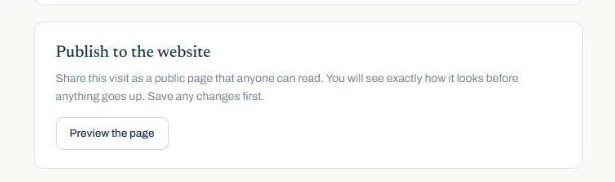
1. Open the visit. Go to My visits, find the one you want, and click Edit. Below the form there is a card headed Publish to the website. Click Preview the page.
2. Look at the page. This is the page exactly as it would appear, photographs and all, with a list beside it of what is shown and what is never shown. If something is not right, go back and edit the visit: change the comment, mark another photograph as public, or unmark one.
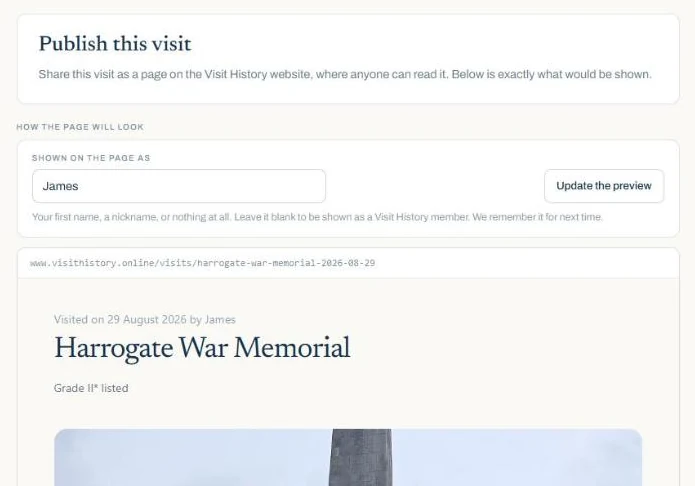
3. Choose your name. The box above the preview says how you will appear on the page. It starts with the name on your account, if there is one. Put your first name, a nickname, or leave it blank to be shown as "a Visit History member". Press Update the preview to see it on the page. We remember what you chose for next time.
4. Tick the box and publish. Under the preview is a plain list of what the page shows and what it never shows. Below that, the tick box says what you are agreeing to: the page will be public, anyone can read it, and search engines can list it. Then Publish this visit.
5. Wait for us. We read every page before it goes up. That normally happens within 24 hours, and you get an email with the address when it is live. If we decide not to publish something, you get an email saying why, and nothing about your visit changes.
Changing a page, and taking it down
A page is not frozen. Edit the visit and the page follows: a reworded comment or a newly public photograph shows on the page within the hour. You do not need to ask again.
To take a page down, open the visit and choose Take this page down. It goes at once. The photographs can take up to an hour to stop answering, because they are cached, and copies that a search engine has made are outside our control and can take longer to disappear. Deleting the visit, or your account, removes the page too.
If you take a page down and later change your mind, ask again and it comes back at the same address.
A page needs something on it
We will not publish a visit that has no public comment and no public photograph. There would be nothing on the page but a name and a date, and that helps nobody. A comment of a couple of sentences is enough, and so is one photograph.
Why we check
Two reasons, and neither is about trusting you.
The first is the people in your photographs. A picture you were happy to show other members is a smaller audience than the open web, and a face in the background of a shot of a castle is somebody who did not ask to be on a website. We look for that.
The second is that these pages carry our name as well as yours. Someone searching for a Grade I church will find your visit next to ours, and we would like it to be worth their while.
What a reader sees
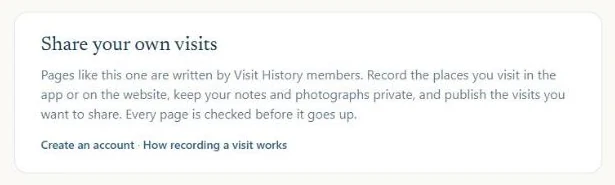
Someone who arrives at your page from a search has probably never heard of Visit History. So every page ends with a short note on where it came from, and how they could write their own.
Where it works
Publishing is on the website for now. The app can record a visit, and the website can publish it, which covers everyone. A publish button in the app itself is on the list.
The pages so far are at visithistory.online/visits. If you have a day out worth telling someone about, it is three clicks from your visit list.