How groups work
A group owns layers of sites, exactly like the layers in My sites, except that every member sees them. They switch on and off on the map like any other layer, and each site has its own page, can be searched for, and can have visits recorded against it.
Groups are set up by Visit History for an organisation, not made by members. If your society would like one, write to support@visithistory.online with its name and the email address of the person who will run it.
Everyone in a group has one of three roles:
| Role | Can |
|---|---|
| Group admin | Add and remove members, make them editors or viewers, share and change the invite code, make and delete the group’s layers. Everything an editor can do. |
| Editor | Add, edit and remove sites on the group’s layers, make new layers for the group, and rename or recolour them. |
| Viewer | See the group’s sites and record their own visits to them. Everyone joins as a viewer. |
Running a group
This part is for group admins. Running a group happens on the website: open My sites, then the link to your group under its heading (or go straight to visithistory.online/app/groups). Members, roles and the invite code are all on the group’s one page.
Your invitation
If you did not have an account, the email inviting you contains a link. Open it, choose a password, and you arrive on your groups with your group listed. If you already had an account, you are simply told you have been made group admin. Either way, the first time you open the group it asks what name the other members should see you by.
Adding members
There are two ways, and you can use both.
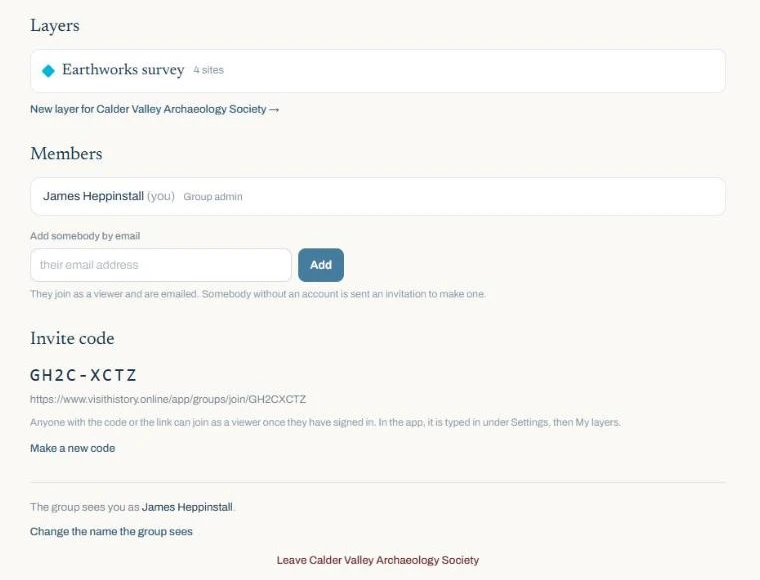
- By email. Type an address under Add somebody by email. They are added straight away and emailed. Somebody without an account is sent an invitation to make one. Best for the people you know.
- With the invite code. Your group’s page shows a code such as
KX7P-2MQ9and a link containing it. Anybody with either can join as a viewer once they have signed in. Best for a meeting, a newsletter or a noticeboard.
If a code has gone further than you meant, press Make a new code. The old one stops working at once. Nobody already in the group is removed.
If an invitation email does not arrive, the person can still get in: they sign in at visithistory.online with Google or Apple on that address, or choose Forgotten? on the sign-in page to set a password.
Roles and removing people
Beside each member are Make editor (or Make viewer) and Remove. Removing somebody takes the group’s layers off their map. The sites they added stay, because they belong to the group, not to them.
You cannot make another member a group admin, or remove one. To hand the group over, or add a second group admin, write to support.
The group’s layers
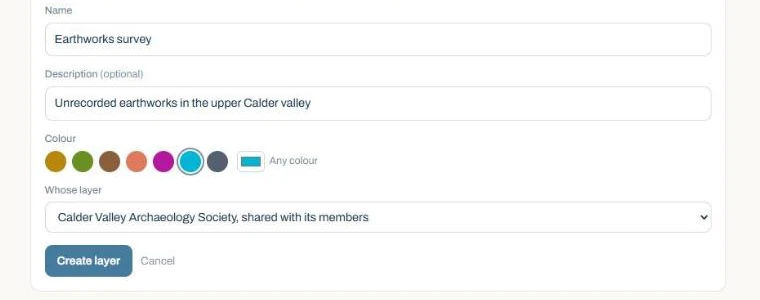
Open My sites, start a new layer, and under Whose layer choose your group. It appears on every member’s map under the group’s name. Editors can do the same.
Only a group admin can delete one of the group’s layers, because deleting a layer deletes every site on it and every visit any member has recorded against them. Editors can rename and recolour a layer but not delete it, or move it out of the group.
If your group pays
Some groups pay for their members. If yours does, the date it is paid until is shown on your group’s page, and every member without a subscription of their own has full access until then. Renewing is arranged with Visit History directly.
Being in a group
This part is for everyone in a group.
Joining
- You were added by email. There is nothing to do: the group is already on your map. If you had no account, follow the link in the email to set a password.
- You were given a link. Open it, sign in, check it names the group you expected, choose the name the group will see, and press Join.
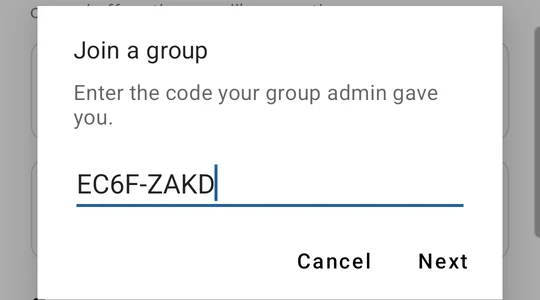
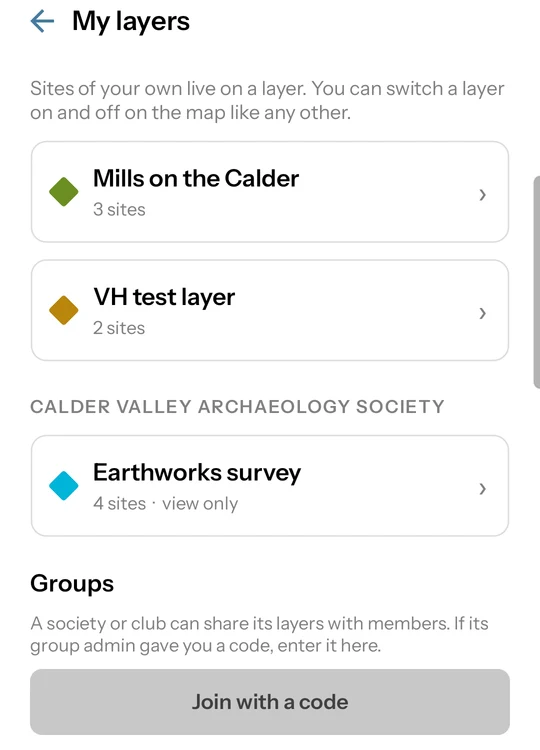
- You were given a code. On the website, open My sites, choose Have a group invite code? and type it in. In the app, open Settings, then My layers, and tap Join with a code. Capitals and the dash do not matter.
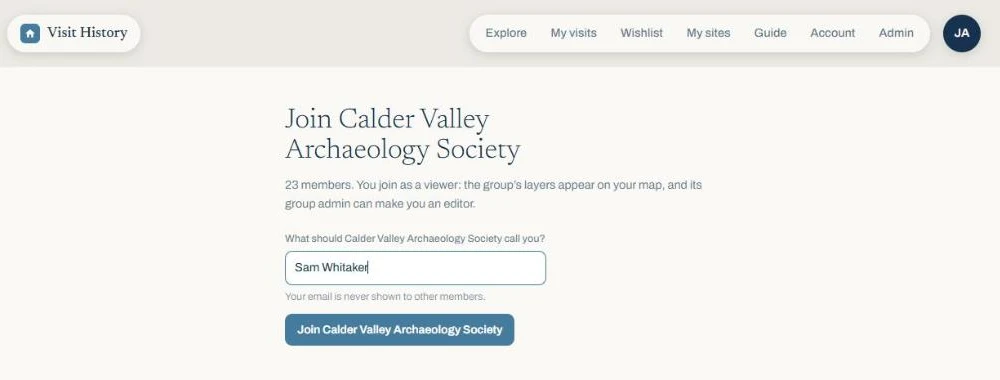
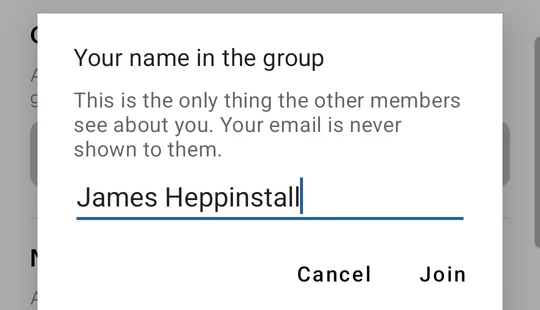
You can change the name the group sees at any time from the group’s page.
Finding the group’s sites
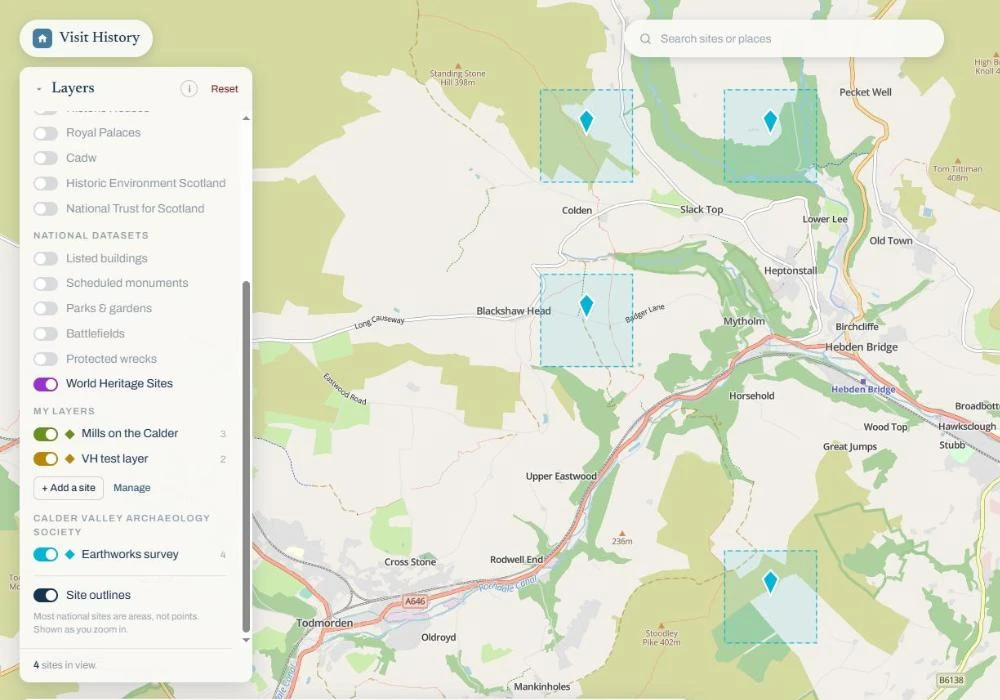
On the website, the layers panel lists each group’s layers under the group’s name, below MY LAYERS. In the app, they are in the My Visits row of layer buttons on the map, after your own and a thin dividing line; press and hold one to see which layer and group it is. Like every layer, each one switches on and off.
In the app, Settings then My layers lists the group’s layers under its name, marked view only unless you are an editor. Opening one lists its sites.
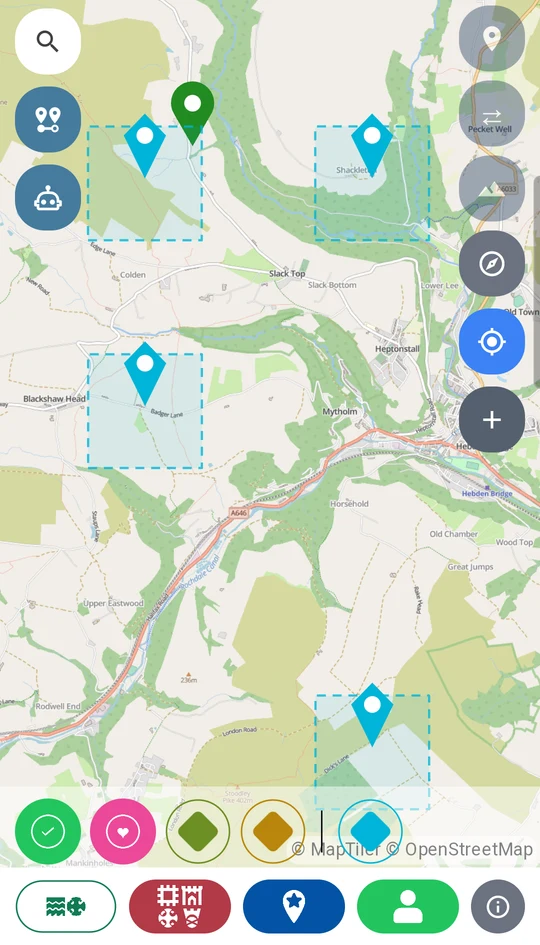
Sites shown to the square
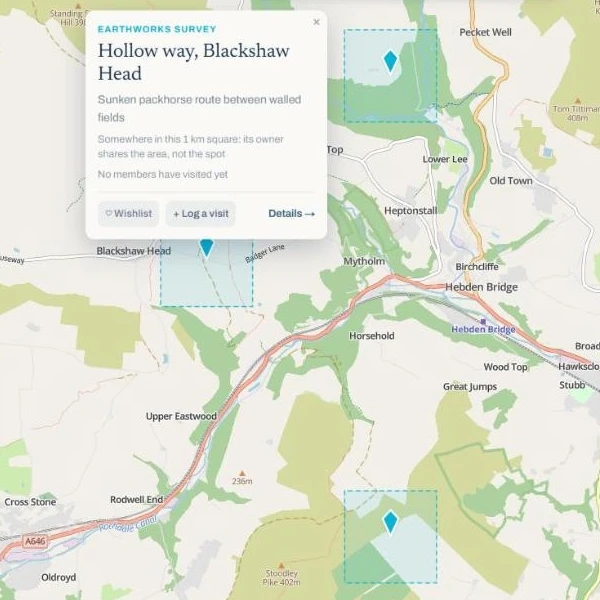
Whoever records a site chooses how precisely the rest of the group sees it: exactly, or only to the 1 km or 10 km grid square. This is how a findspot can be shared without becoming a map for somebody with a detector and no permission.
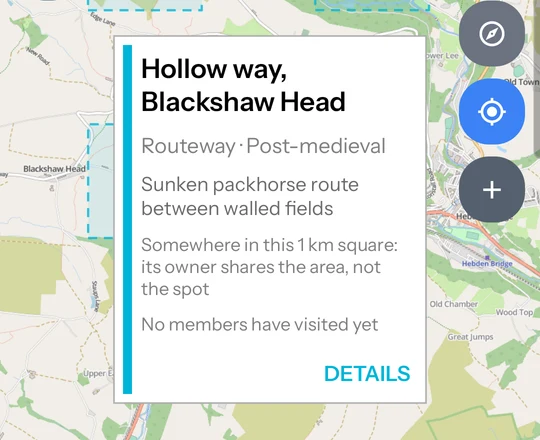
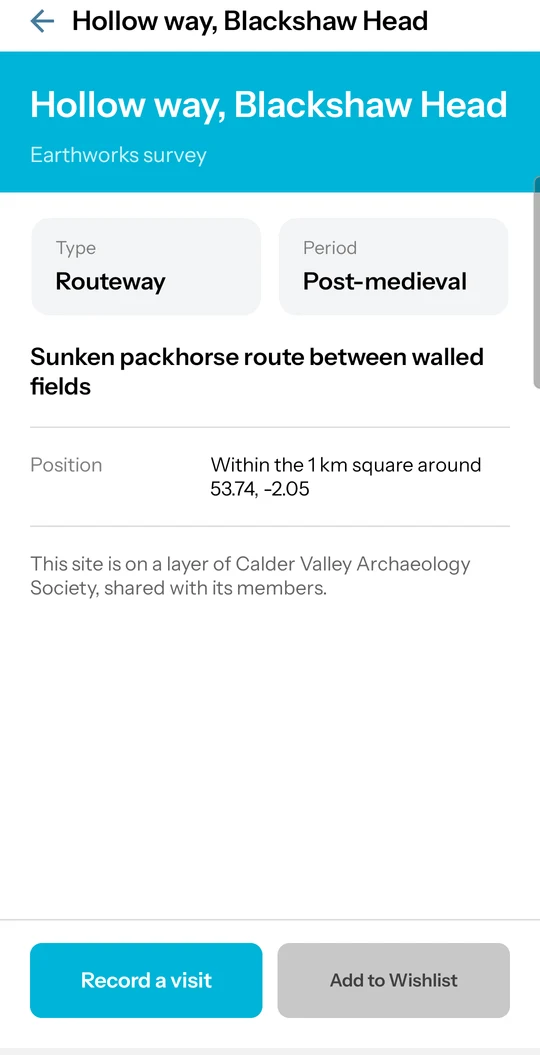
A site shared to the square is drawn as a faint dashed square with its pin in the middle. The site is somewhere inside the square, almost never at the pin. Its card says so, its grid reference is given to the square, and there is no Directions button, because directions to the middle of a square would take you to the wrong place. Editors and group admins see the exact position.
Visiting and adding
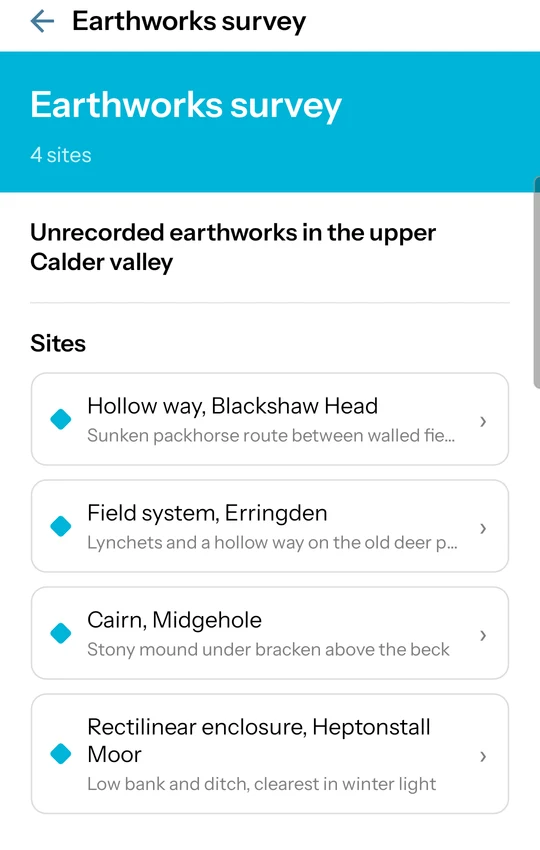
Record a visit to a group’s site exactly as you would anywhere else: date, photographs, a rating and private notes. Each site’s card and page say how many members have visited it, which is the quickest way to see what still needs going to.
If you are an editor, add sites to the group’s layers the same way as to your own: by grid reference on the layer’s page, or on the map. On the phone, adding a site where you stand uses the position the phone already knows.
Leaving
At the foot of the group’s page, press Leave. The group’s layers come off your map. Your own visits stay yours.
What the group can and cannot see
- Your name in the group, and your role. That is all the other members see about you. Your email address is never shown to them.
- A count of visits, never who. A site shows “visited by 3 members”. Nobody, the group admin included, can see whose visits those are or when.
- Your own layers stay yours. Joining a group shares nothing of My sites. Only the group’s layers are shared.
- Notes, ratings and photographs on your visits stay as private as they are everywhere else.
- Photographs on a group’s sites are seen by every member, and are stored without the location your camera recorded, so a site shared to the square is not given away by its own picture.
Next: my sites, or recording visits.